Printify Login: Secure Access Guide
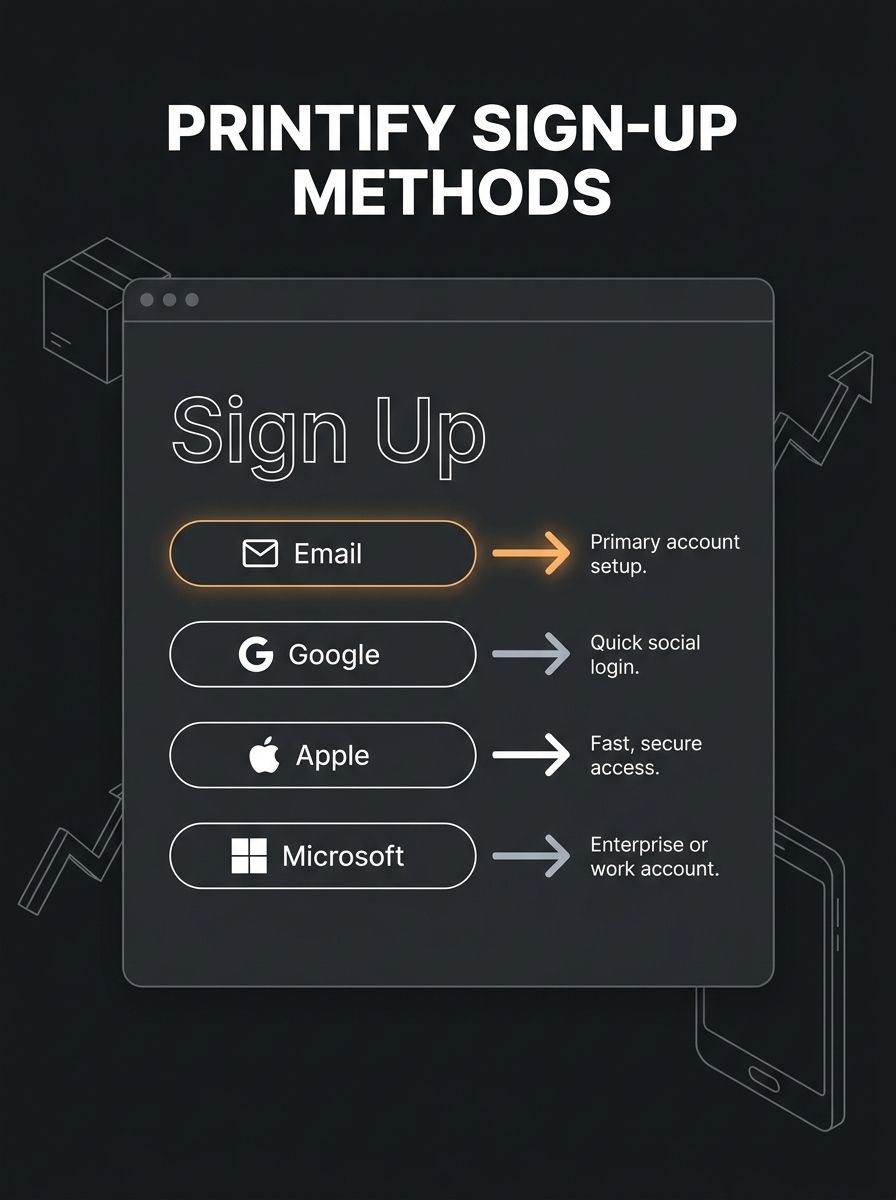
Printify supports four sign-in methods (email/password, Google, Apple, and Microsoft) plus two-factor authentication via SMS, email, and hardware tokens, according to a Nudge Security profile of the platform. Here's how to configure each method in under 10 minutes.

Printify Login: Secure Access Guide
Printify supports four sign-in methods (email/password, Google, Apple, and Microsoft) plus two-factor authentication via SMS, email, and hardware tokens, according to a Nudge Security profile of the platform. Here's how to configure each method in under 10 minutes.
Before You Start
You need three things before touching the Printify login page: a valid email address, a supported browser (Chrome, Firefox, Edge, or Safari running a current version), and a decision about which sign-in method you'll use going forward. If you plan to connect a Shopify, Etsy, or WooCommerce store, have those platform credentials ready too.
Time required: 8-10 minutes for full setup including 2FA configuration.
Knowledge level: Zero Printify experience needed. If you've created an account on any SaaS platform before, you already know 90% of what follows.
One decision to make upfront: social sign-in (Google, Apple, Microsoft) vs. email/password. Social sign-in saves you 90 seconds on day one but creates a hard dependency. Printify's help documentation is explicit on this point: if you created your account using Apple Sign-in, you won't be able to log in by entering an email and password. You'll need the "Continue with Apple" button every single time. Pick the method you'll stick with for 12+ months.
Sign-In Method | Setup Speed | Recovery Complexity | 2FA Compatible | Dependency Risk |
|---|---|---|---|---|
Email + Password | ~2 min | Low (password reset via email) | Yes | None |
~30 sec | Medium (tied to Google account) | Yes | Google account access | |
Apple | ~30 sec | High (Apple ID required every login) | Yes | Apple ID access |
Microsoft | ~30 sec | Medium (tied to Microsoft account) | Yes | Microsoft account access |
Step 1: Create Your Printify Account
Go to printify.com and click the "Get Started" or "Sign Up" button in the upper right corner. You'll see four options: sign up with email, continue with Google, continue with Apple, or continue with Microsoft.
If you choose email: Enter your email address, create a password (use 12+ characters mixing uppercase, lowercase, numbers, and at least 1 symbol), and hit "Sign Up." Printify will send a verification email within 1-2 minutes. Click the confirmation link inside that email to activate your account.
If you choose a social provider: Click the relevant button, authenticate through the provider's OAuth flow, and Printify creates your account automatically using the name and email associated with that provider. No separate password required.
You'll know it worked when: You land on the Printify dashboard with a prompt to set up your first store. If you see the dashboard, your account is live.
For context on what Printify offers once you're inside the platform, our complete Printify app review breaks down the product catalog, print provider network, and pricing tiers across all plan levels.
Step 2: Log In to Your Printify Account
Go to printify.com/app/login. Enter your email and password, or click the social sign-in button matching the method you used during account creation.
And here's where people trip up constantly: if you registered with Google but try to log in with email/password, Printify won't find your credentials. The platform treats each sign-in method as a completely separate authentication path. The email field on the login page and the "Continue with Google" button connect to different identity records. Use the same method you registered with, every time, no exceptions.
After successful authentication, you'll see your Printify dashboard with your store name in the upper left. If you've already connected an ecommerce platform, your products and orders populate within a few seconds. That's your confirmation.
Step 3: Enable Two-Factor Authentication
This is the step most Printify sellers skip, and it's the step that matters most if you're running any real revenue through the platform. A compromised Printify account means someone can reroute your orders, change your connected payment method, or access your customers' shipping addresses.
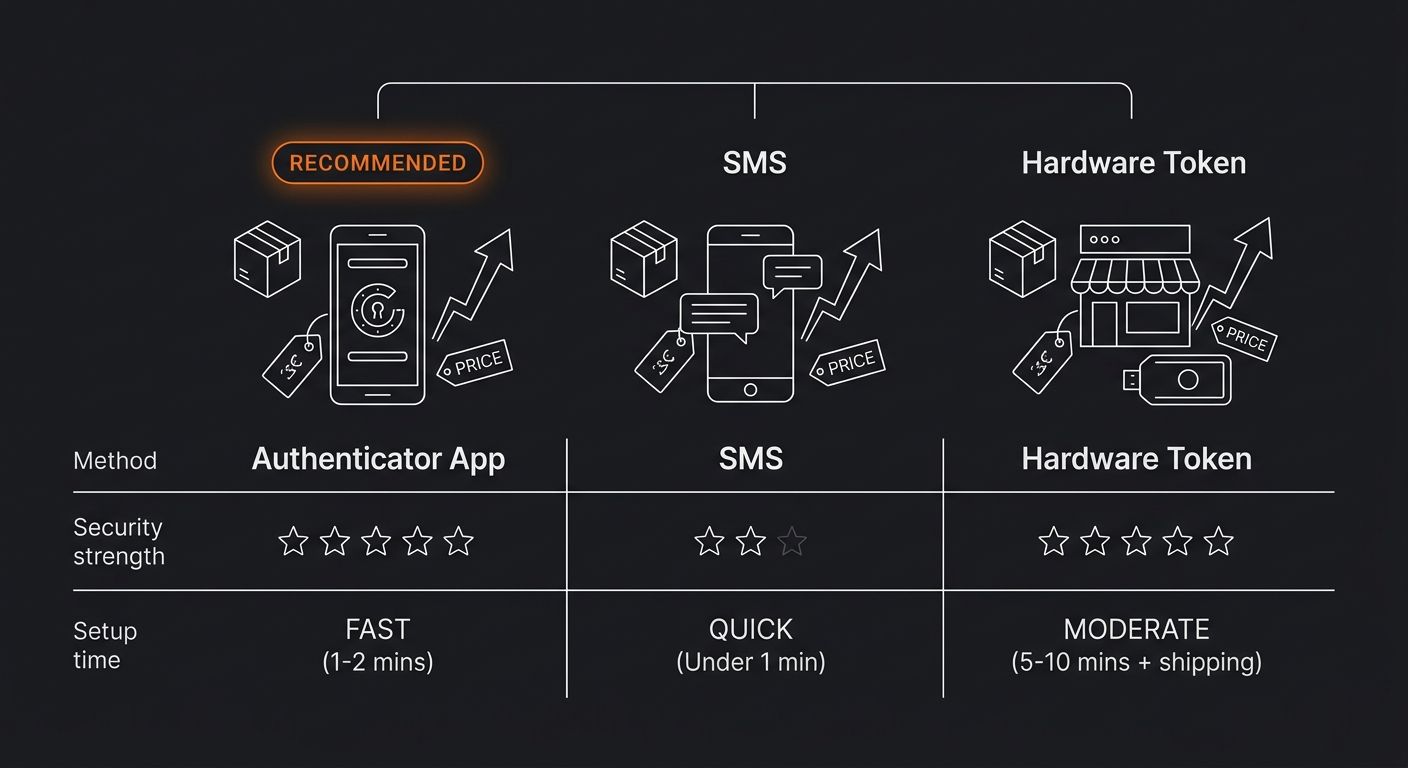
Printify's security infrastructure supports 2FA via SMS, email, and hardware tokens, plus SSO through Okta for teams running centralized identity management. The platform also supports Google and Microsoft login at the OAuth level, which means your 2FA settings on those providers carry over as an indirect second factor.
Here's how to enable 2FA directly within Printify:
Log in to your Printify dashboard
Click your profile icon in the upper right corner
Navigate to Account Settings
Find the Security or Two-Factor Authentication section
Select your preferred 2FA method (an authenticator app like Google Authenticator or Authy is the strongest option, with 6-digit codes that rotate every 30 seconds)
Follow the on-screen prompts to link your authenticator app or verify your phone number
Save the backup recovery code offline. Use a password manager or write it on paper stored in your desk. Do not screenshot it and leave the image in your phone's camera roll
You'll know it worked when: Your next Printify login attempt prompts you for a 6-digit verification code after you enter your password.
Community demand for this feature has been intense. One seller on the Printify subreddit described the situation bluntly: "I get my account hacked all the time and I just want the added layer of security."
Step 4: Connect Your Ecommerce Store
With your account secured, the next phase is linking Printify to your storefront. This is where the Printify login intersects with your broader operations, and where integration hiccups cause the most support tickets.
From your dashboard:
Click "Manage my stores" or follow the store connection prompt on your main dashboard
Select your platform: Shopify, Etsy, WooCommerce, Wix, BigCommerce, Squarespace, or the Printify API (7 options total)
Authenticate through the platform's OAuth flow. For Shopify, this means logging into your Shopify admin and approving the Printify app permissions. For Etsy, you'll authorize via Etsy's OAuth screen
Confirm the connection is active back in your Printify dashboard
Verification: Push a test product from Printify to your connected store. If the product appears in your store's catalog within 2-3 minutes, the integration is working correctly.
If you're weighing Printify against other print-on-demand providers before committing, our comparison of Printful and Tapstitch covers catalog size (479 products vs. 400), quality tradeoffs, and pricing differences. And for a deeper look at how POD platforms handle data flow between your storefront and print providers, the integration models breakdown maps the full catalog management pipeline.
When Login Breaks: The 3 Most Common Failures
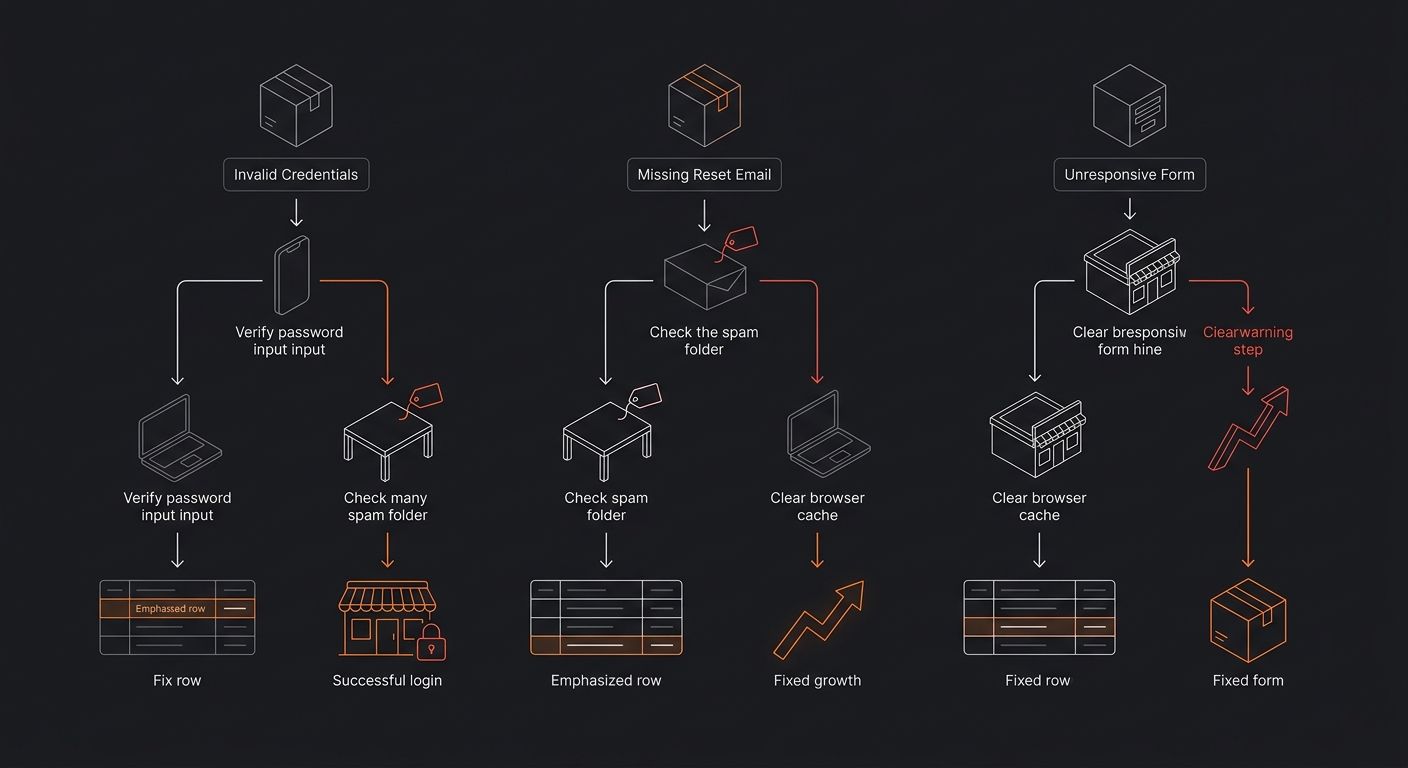
Even with everything configured correctly, you'll eventually hit a login wall. These are the three failures I see most often from sellers I work with, ranked by how frequently they come up.
Failure 1: "Invalid credentials" on a valid email/password combo
Cause: You registered with Google or Apple but you're attempting the email/password path. Printify's auth system treats these as entirely separate channels with separate identity records.
Fix: Click "Continue with Google" (or Apple, or Microsoft) instead of typing your email manually. If you genuinely don't remember which method you used, try each social provider button in sequence. The one that lands you on a dashboard is the one you registered with.
Failure 2: Password reset email never arrives
Cause: The reset email landed in spam/junk, or you're entering an email address that differs slightly from your registered one. Gmail aliases like [email protected] are a common culprit.
Fix: Go to printify.com/app/auth/recover, enter your email, and immediately check your spam folder. Wait 5-10 minutes before trying again. If nothing shows up after 2 attempts, try alternate email addresses you might have used during initial signup. Contact Printify support through help.printify.com as a last resort.
Failure 3: Page loads but the login form is unresponsive
Cause: Browser extension conflicts, corrupted cache data, or an outdated browser version. Ad blockers and aggressive privacy extensions (like uBlock Origin in strict mode) frequently interfere with Printify's login JavaScript.
Fix: Clear your browser cache and cookies for printify.com specifically (not your entire browser cache). Disable extensions temporarily. If the form still won't respond, switch to a different browser entirely. Chrome and Firefox on their current stable releases have the fewest reported compatibility issues with Printify's login flow.
Where to Go From Here
Your Printify login is configured, 2FA is active, and your store connection is verified. The operational foundation is solid.
The next priority is understanding the economics of what you're actually selling through the platform. Print-on-demand margins run tight compared to traditional dropshipping. Typical gross margins land between 30-45% depending on product category, print provider selection within Printify's network, and whether you're absorbing shipping costs or passing them to customers. If you're new to modeling landed costs and contribution margins on POD products, our profit margin calculator guide walks through the math with real numbers.
Build one maintenance habit now: log in to your Printify account at least once per week, even during slow periods. Stale sessions and forgotten credentials are the number one driver of panicked "I can't access my account" support tickets during Q4 traffic spikes. If you're still evaluating whether print-on-demand or traditional dropshipping fits your situation better, the beginner's guide to starting a dropshipping business covers the structural tradeoffs between fulfillment models. Keep your Printify access fresh, keep your 2FA backup codes stored somewhere you can actually find them, and you won't be the seller locked out of their own dashboard 72 hours before Black Friday.

Ryan Torres
Ryan Torres is a former Amazon FBA seller turned dropshipping consultant who has generated over $2.8M in ecommerce revenue across 14 product launches. He specializes in supplier vetting, margin optimization, and scaling DTC operations for sub-$1M brands. Ryan focuses on actionable frameworks that drive measurable results for independent operators.
Frequently Asked Questions
- How do I log in to my Printify account?
- Go to printify.com/app/login and enter your email and password, or click the social sign-in button (Google, Apple, or Microsoft) that matches the method you used during account creation. You must use the same sign-in method every time, as each method connects to a separate identity record.
- What are the four sign-in methods for Printify?
- Printify supports email/password, Google Sign-in, Apple Sign-in, and Microsoft Sign-in. The platform also offers two-factor authentication via SMS, email, and hardware tokens for added security.
- Why can't I log in with email and password if I signed up with Google?
- Printify treats each sign-in method as a completely separate authentication path with different identity records. If you registered with Google, you must use the "Continue with Google" button every time—you cannot log in using email and password credentials.
- How do I enable two-factor authentication on Printify?
- Log in to your dashboard, click your profile icon in the upper right, navigate to Account Settings, find the Security section, and select your preferred 2FA method (authenticator app, SMS, or email). Save your backup recovery code offline in a secure location.
- What should I do if my password reset email doesn't arrive?
- Check your spam or junk folder, wait 5-10 minutes, and verify you're using the exact email address you registered with. If the email still doesn't arrive after 2 attempts, try alternate email addresses you may have used during signup or contact Printify support at help.printify.com.
- Why is my Printify login form not responding?
- Browser extension conflicts, corrupted cache data, or an outdated browser version can cause an unresponsive login form. Try clearing your browser cache and cookies for printify.com, temporarily disable extensions (especially ad blockers), or switch to a different browser like Chrome or Firefox on their current stable releases.
- How long does it take to set up a Printify account with two-factor authentication?
- Full setup including 2FA configuration takes 8-10 minutes. Account creation takes 2 minutes with email/password or 30 seconds with a social provider, and enabling 2FA adds approximately 90 seconds.
- Should I use social sign-in or email/password for Printify?
- Social sign-in (Google, Apple, Microsoft) saves time on day one but creates a dependency on that provider's account access. Email/password requires more initial setup but offers greater independence. Choose the method you plan to use consistently for 12+ months, as switching later is difficult.
Related Articles

Printify: Complete App Review & Guide
Printify is a print-on-demand marketplace that routes your orders to a network of over 100 independent print providers who manufacture and ship products under your brand.

Printful vs Printify: Which Platform Wins
Printful and Printify completed a corporate merger but still operate as separate platforms with independent pricing, fulfillment networks, and dashboards. POD sellers face three real paths: Printful for brand control, Printify for margin, or a hybrid splitting the catalog across both.

Dropshipping Apparel: Complete Startup Guide
Apparel carries a 20–30% return rate in ecommerce, the highest of any dropshipping category, and sizing errors drive the majority of those returns.
Explore more topics